Everything that happens before data gets into your CRM.
The detail of every step: what we check, what we show you and what you decide. Everything you see here works today.
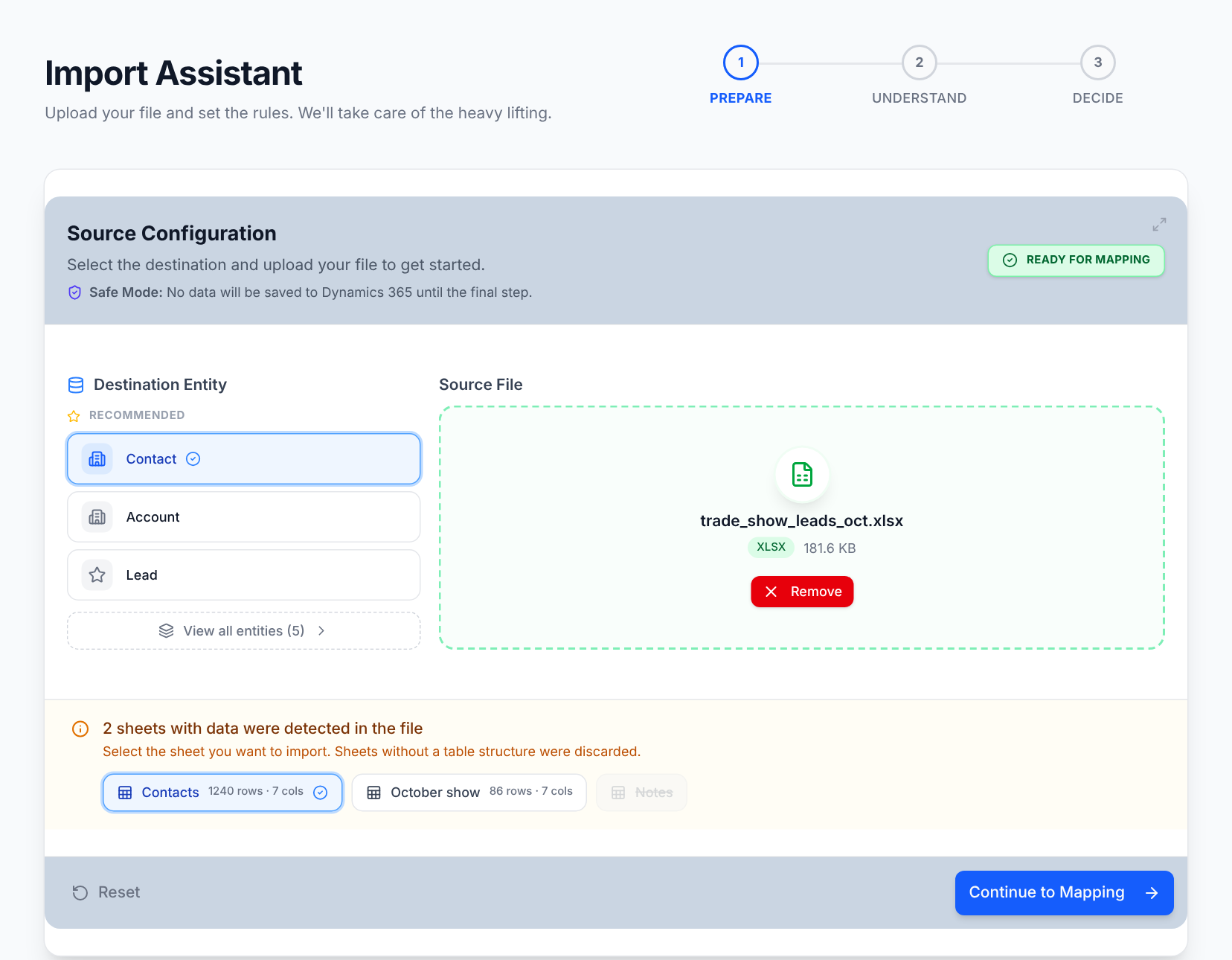
Your file, as it comes.
Upload an Excel or CSV file and choose the destination entity. If the file has several sheets, we show the ones with data so you can pick which to import; sheets without a table structure are discarded automatically.
- .xlsx, .xls or .csv, up to 50 MB
- Lead, Contact, Account, Opportunity and Product
- Configurable regional format (dates, decimals and thousands) to read your Excel correctly
- We show which fields are used to look for duplicates in that entity
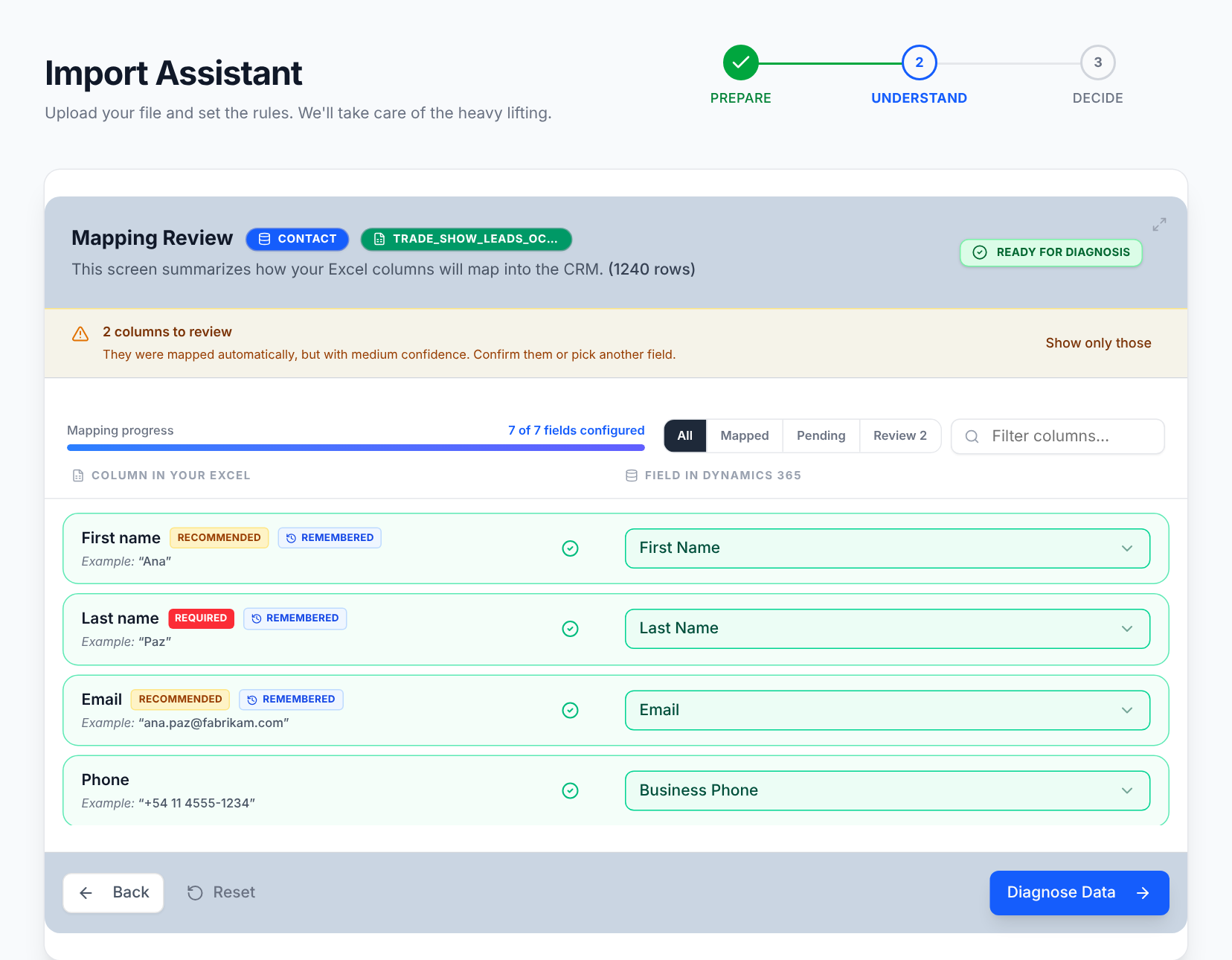
Every column, to its field, with a confidence level.
We suggest which Dataverse field each column goes to by comparing names, and tell you how confident each suggestion is. Anything without a clear match is flagged so you decide.
- A real value from your file in every mapping, to confirm at a glance
- Suggestions for unmapped columns
- Required-field coverage check
- Edit the mapping manually at any time
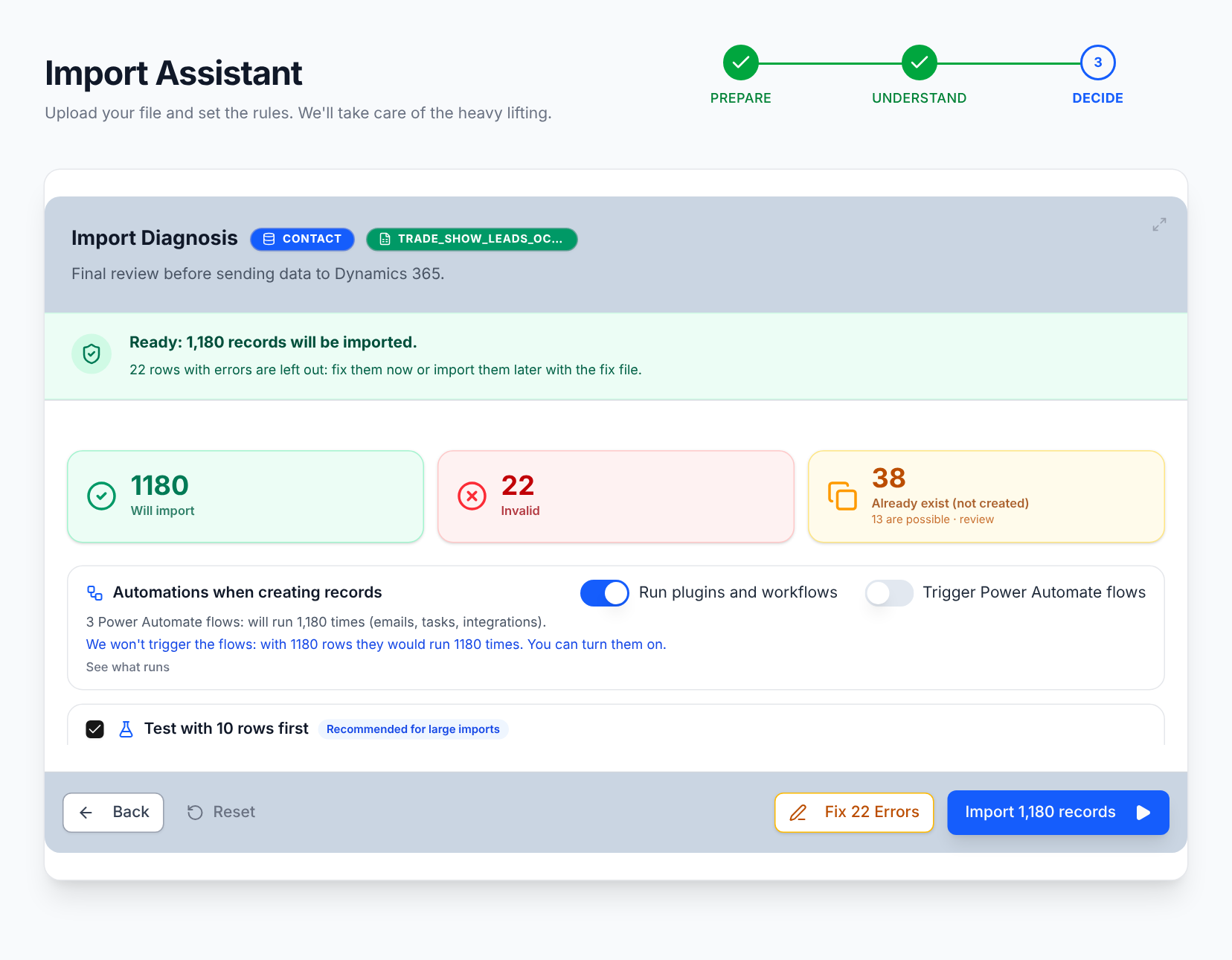
Every error, with its exact reason.
Before anything is written, every row goes through these validations against your Dynamics’ real configuration: data types, option lists and lookups. You can download the full diagnosis.
- Empty required field
- Email format
- Phone format
- Whole number
- Decimal number
- Currency value
- Date and time
- Yes / No
- URL
- Maximum text length
- Value outside the option list
- Lookup that doesn’t exist in Dynamics
- Valid GUID
- Possible duplicate in the CRM
- Possible duplicate within the file
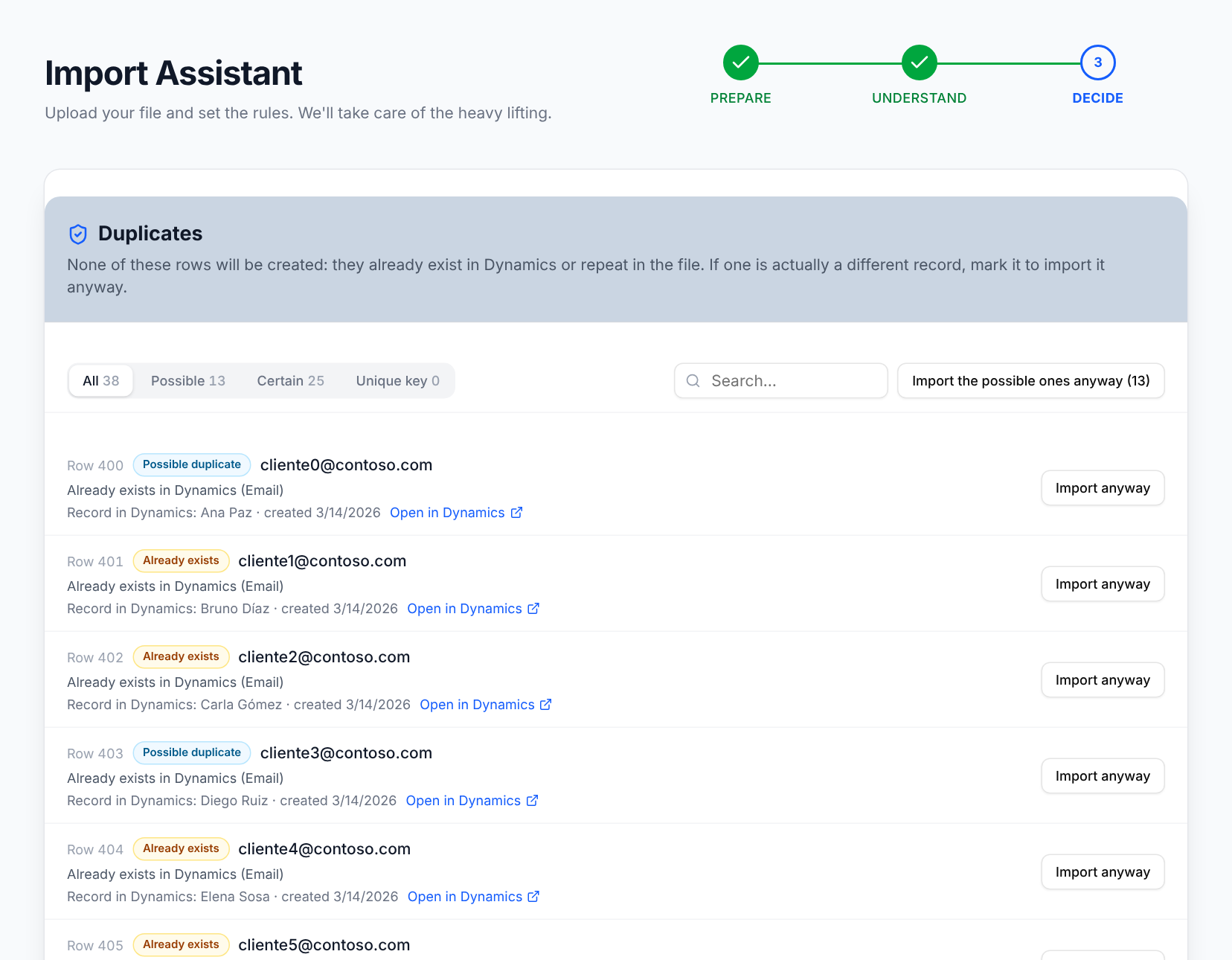
Side by side with your live CRM.
Every possible duplicate appears next to the record that already exists in Dynamics: its name, when it was created, the rule that matched and a link to open it. You decide whether it goes in anyway or is skipped, one by one or all the possible ones at once. We also detect rows repeated within the same file.
| Entity | Compared by |
|---|---|
| Lead | Email, Mobile Phone or Business Phone |
| Contact | Email, Mobile Phone or Business Phone |
| Account | Account name, phone or email |
| Opportunity | Customer + name (or just name if no customer is provided) |
| Product | Product Number or name |
Fix without going back to Excel.
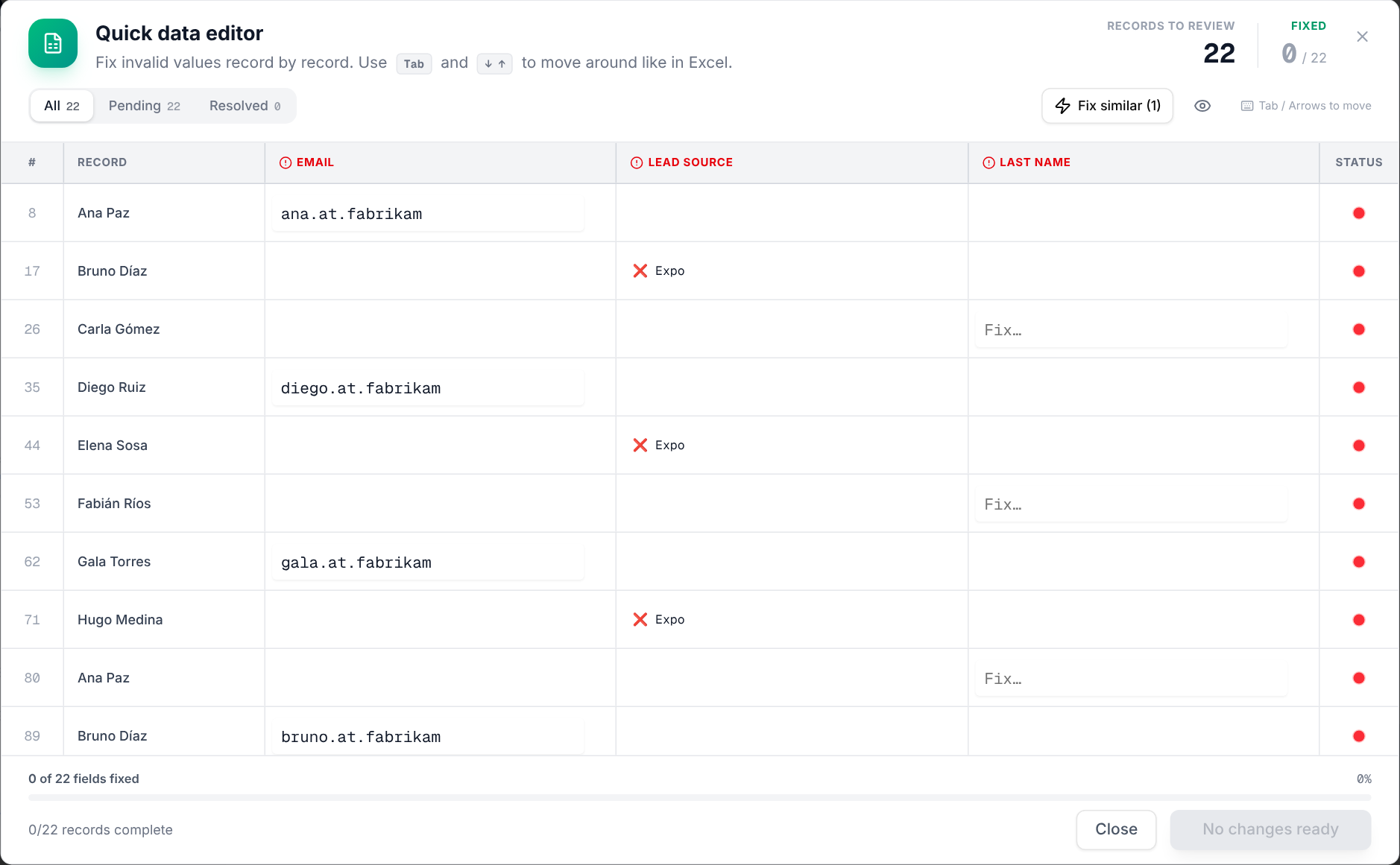
A per-record editor, like a spreadsheet but with context: every invalid field is flagged and you fix it right there. For lookups we suggest the likely match, or you paste the exact GUID.
- Move with Tab and the arrow keys, like in Excel
- Real-time progress: resolved in green, pending in red
- Manual changes are flagged so you review them before applying
Only what you approved goes in, and it’s recorded.
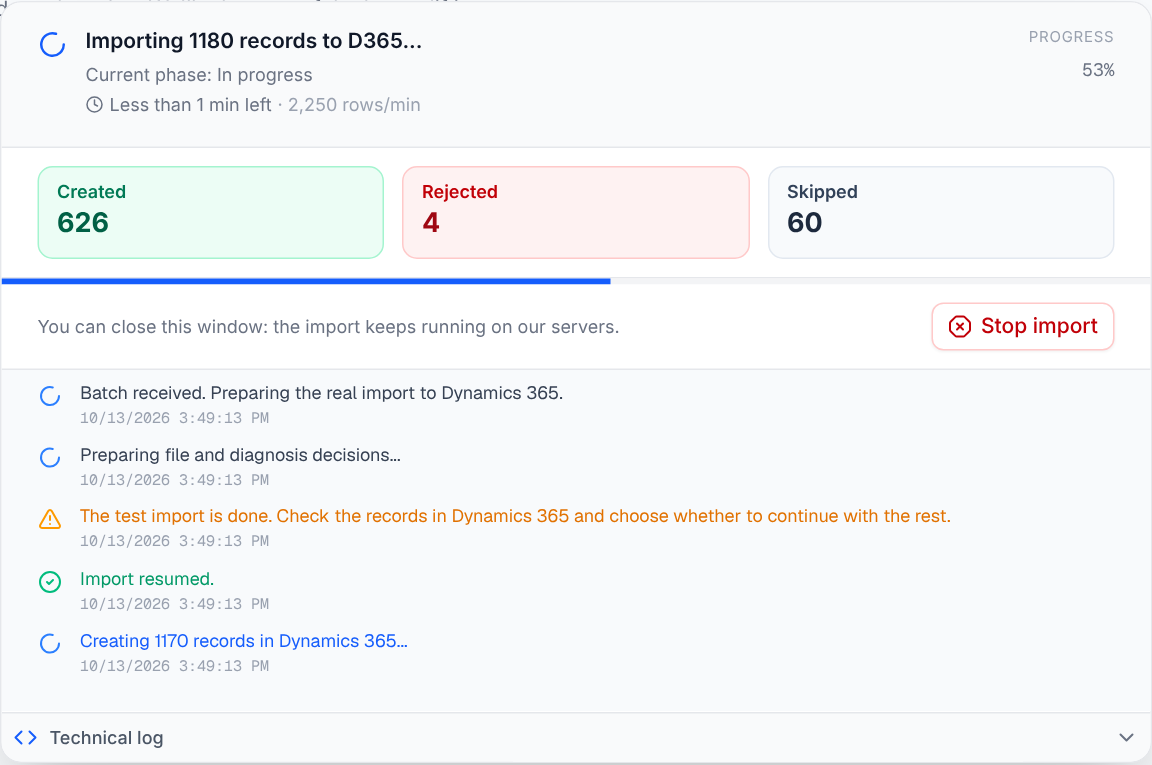
Before writing, we tell you how many new records will be created and in which entity. The import runs in the background; if it’s interrupted, it resumes and skips the rows it already processed, so nothing is duplicated.
- Test import: we create the first 10 rows, pause, and you check them in Dynamics before continuing
- Pause, resume or stop at any time, with the estimated time in view
- If your Microsoft session expires, the import pauses on its own and you resume without duplicates
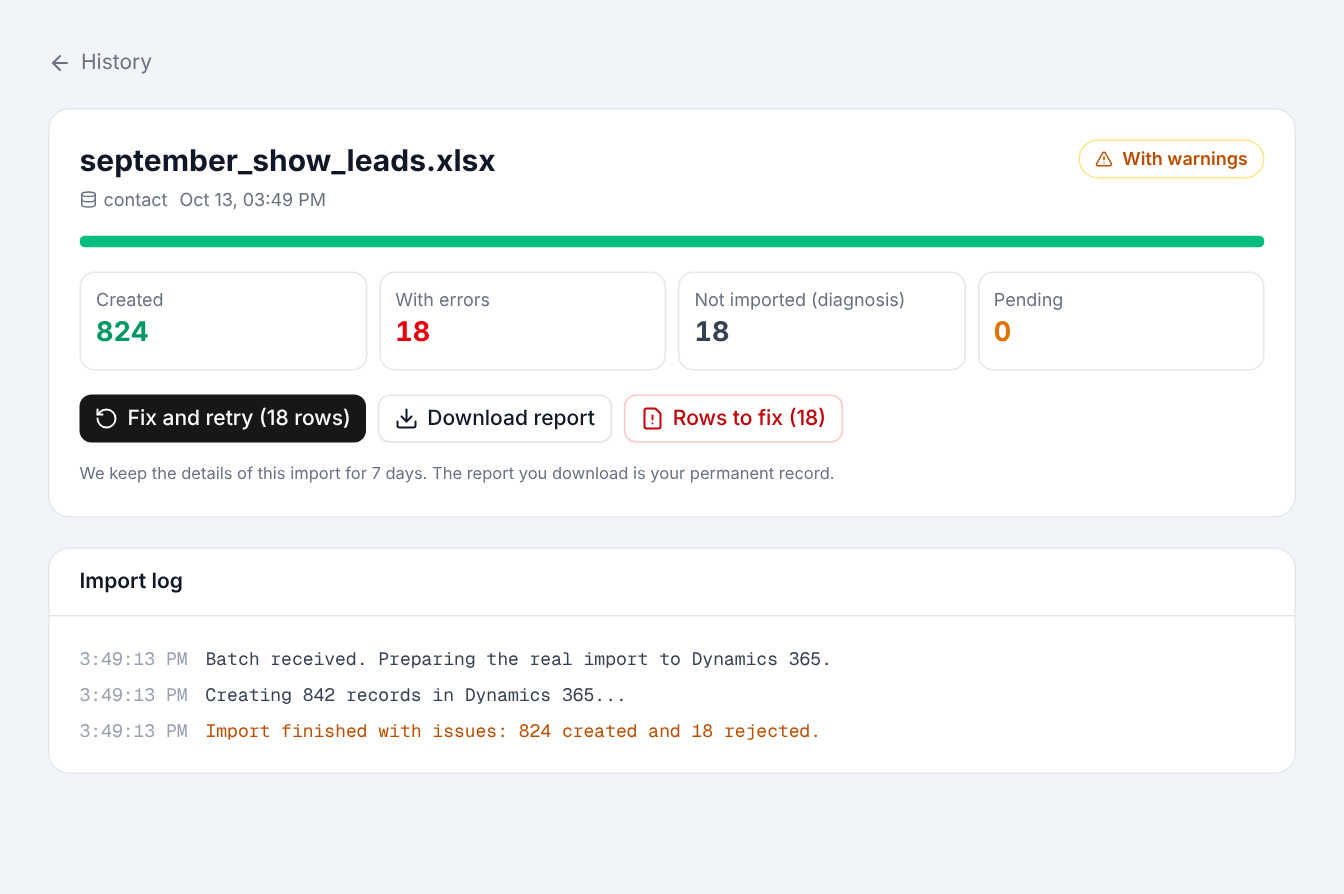
- Final summary: created, rejected and skipped
- Row-by-row Excel report, downloadable from the history
- Safe mode: explicit confirmation before writing to Dynamics
- It only creates new records: it never updates or deletes existing ones
You decide what runs when each record is created.
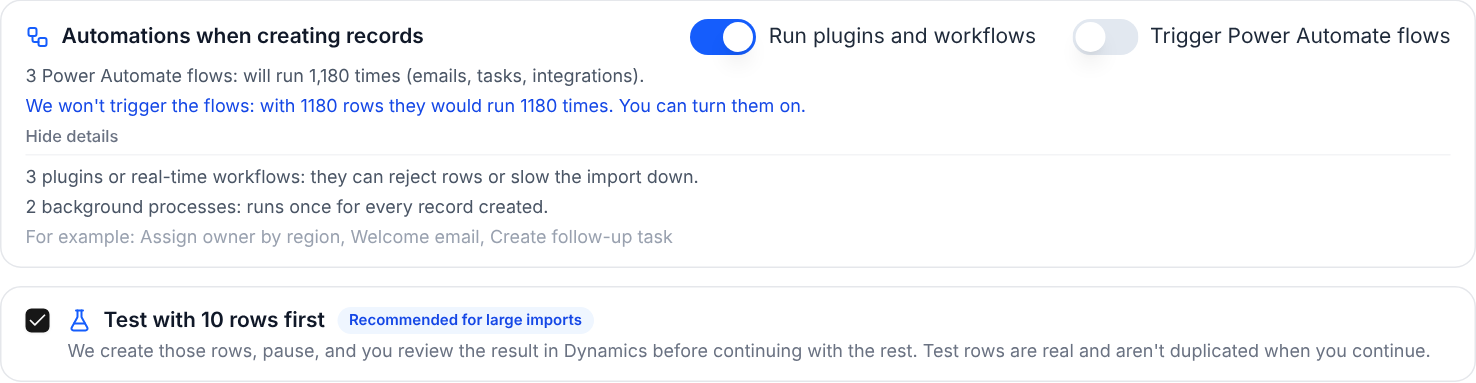
Before importing we show you which plugins, workflows and Power Automate flows that entity has, and you choose whether they run. That way an import of thousands of rows doesn’t send thousands of emails or create thousands of tasks without you knowing.
- Plugins and workflows: run or skip
- Power Automate flows: trigger or not
- On large imports, flows are off by default
- Skipping plugins requires your user to have that privilege in Dynamics
Built for people who import often.
The details that matter when you work across several clients or environments.
- Fix and retry: the rows that didn’t make it go back to the assistant in one click, without editing the Excel file
- A template per entity, so you start without guessing columns
- We remember your mappings and the last entity you used
- Switch Dataverse environments without signing out
- If you closed the tab halfway through, you pick the import session back up where you left it
- Interface in Spanish and English
- Exploration mode to get to know the interface without connecting an environment
Need something else?Another entity, a validation of your own or a custom plugin: tell us what you need and we’ll look into it.
Try it with your own data.Free plan: 500 rows per month, every feature, no card.